
CartHero integrates with NMI allowing you to accept payments as well as recurring subscriptions.
Need to create an NMI account for your business? We have partnered with Gateway Funnel Pros to provide concierge service for all CartHero users.
https://www.gatewayfunnelpros.com/nmi-for-carthero-get-started/
Important note: NMI allows users to change the subscription plan ID in their interface. To prevent errors in CartHero, do not change this plan ID after adding in the integration.
1. Click on your account in the top right hand corner, and go to your settings

2. Click on Integrations

3. Click on NMI

4. Add NMI integration

5. Both the Private key and Public key are going to come from your NMI account

6. Now head over to your NMI account and click on My Settings

7. Go down to Security Keys

8. You are going to need to add a Private Key and a Public Key

9. Click on Add a New Private Key

10. Give your Private Key a name

11. Assign your Key to a user

12. Check API

13. Check Cart

14. Click on Create

15. Copy the Private Key you just created

16. Paste into CartHero

17. Go back to NMI and click on Add a New Public Key

18. Give your Key a name and select a user

19. Select Tokenization for the Key Permission

20. Click on Create

21. Copy your Public Key

22. Paste into CartHero

23. Click on Install

24. After you have NMI installed, you are going to want to click on Settings

25. Copy the Recurring webhook URL
This URL allows us to listen in to the events in NMI, so that when your customers are charged for their subscription plan, or you add a new subscription plan, we can receive those events, and make everything visible in CartHero.

26. Head back over to NMI, and click on My Settings

27. Click on All Settings
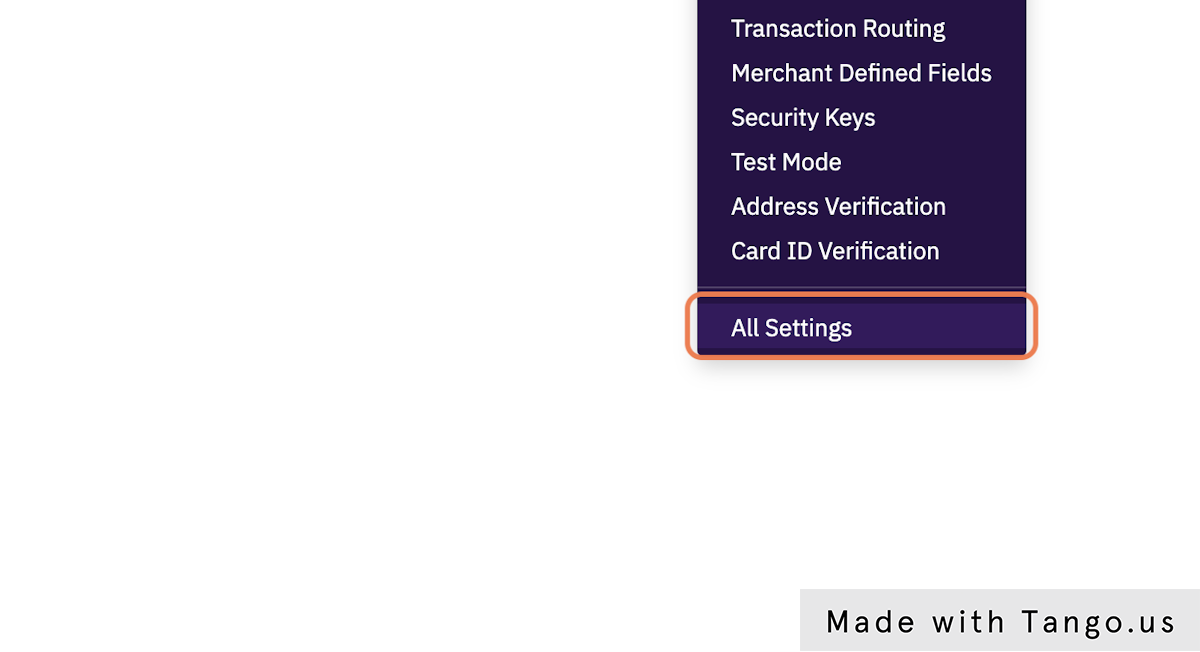
28. Click on Webhooks, under Transaction Options

29. Click on Create

30. Paste the webhook that you copied from CartHero

31. Click on the arrow button to add all of the events that begin with the word recurring, which will be a total of 6.

32. Click the arrow to add transaction.sale.success
Make sure you add in all 7 events correctly.

33. Click on Save Changes

34. Copy your Signing Key
This is going to be pasted into CartHero

35. In CartHero, click on API credentials

36. Paste your Signing Key

37. Click on Save API credentials

38. A few minutes after saving your API credentials, you should see all of your plans under your deactivated subscription plans.
Once you have your subscription plan set up, we will be able to create orders and send those orders over to your fulfillment integration.
39. If you have any questions, feel free to join our slack channel for on demand support.
https://join.slack.com/t/cart-hero-official/shared_invite/zt-1swm0rgua-ZXRdmc4kugSjo~ZUzbea5A
Comments
0 comments
Please sign in to leave a comment.